Included features
- Stereo and supported ADM playback.
- Loudness targets, true peak, phase and spectrum analysis.
- Timecoded review notes, A/B comparison and email reports.
Review stereo and immersive mixes, mark what needs attention and return notes with precise timecodes.
One workflow, for stereo and immersive audio.
macOS 13.0 or later · Apple Silicon only · Developer ID signed · Apple notarized · 30-day trial
Version 1.0.9


UTUVO Player Pro · US$19 · One app, one-time purchase. Other UTUVO apps are separate purchases.
| System requirements | macOS 13.0 or later · Apple Silicon only · Intel not supported |
|---|---|
| Licence | No subscription. Buy once, use the purchased major version and every update within that major. 3 of your own Macs. Terms |
| Move or reinstall | Open the app on the old Mac, go to Settings and deactivate the licence there, then enter the same key on the new Mac. No email needed, and a licence covers 3 of your own Macs. Deactivate while the old Mac still has a network connection: if it is offline at that moment the app clears the licence locally but the seat can stay held on our side, and support@utuvo.app can release it for you. For reinstallation, use the same key. If activation cannot be completed, contact support with your order details. |
| Trial | Download and open the app for a 30-day full-feature trial. No card or account required. No automatic charge. |
| Refunds and support | 14-calendar-day no-reason refund period. Refund policy · support@utuvo.app Include your order number for refunds, or app/macOS versions and reproduction steps for issues. |
| Updates | Read the update and maintenance policy ↗ |
From first listen to handoff
Stereo or immersive, streaming target or broadcast spec, the workflow is the same. It ends with a reviewed mix, not a folder of voice memos.


Open your master and listen with loudness and the selected delivery target in view.
Start listeningPress N while listening. Your note keeps the timecode, severity and status, saved on your Mac.
Leave your first noteNotes and measurements go out as a one-click email report your client can act on, or export the review for your next step.
Prepare your handoffA complete local workflow for listening, verification, revision notes, immersive review, and client-ready reports.
Load a plain two-channel WAV and you get the full review workflow: the same loudness engine, timecoded notes, phase and spectrum analysis, A/B compare, exports and email report. Only the 7.1.4 Speaker Room and the 3D Object Visualizer are immersive-specific.
Load a plain two-channel WAV and Pro selects Engine v2 automatically. Loudness, timecoded notes, phase, spectrum, A/B compare and export all stay in the same review window.
Enter sender and recipient, then press Send. Your client receives an HTML email report with the notes, exact timecodes, severities, loudness figures and a screenshot of the review window.


Pick your target and the Integrated LUFS card compares your measurement against that platform’s LUFS and True Peak ceiling, then shows Pass / Warn / Fail. Range, Short-term, True Peak, Short-term Max and Momentary Max sit underneath.
Per-channel PPM for all twelve channels with OVER indicators, polled continuously. Reset clears the Integrated measurement and re-accumulates from now. Export Report writes the loudness compliance report as PDF.
| Target | LUFS | True Peak | Kind |
|---|---|---|---|
| Apple Music | −16 | −1 dBTP | Stereo |
| Spotify | −14 | −1 dBTP | Stereo |
| YouTube | −14 | −1 dBTP | Stereo |
| Amazon Music | −14 | −2 dBTP | Stereo |
| EBU R128 | −23 | −1 dBTP | Broadcast |
| ATSC A/85 | −24 | −2 dBTP | Broadcast |
| Atmos Music | −18 | −1 dBTP | Immersive |
| Netflix Atmos | −27 (±2 LU, BS.1770-1) | −2 dBTP | Immersive |


Fill sender and recipient, press Send. The recipient receives an HTML report with your notes, timecodes, severities, loudness figures and a screenshot of the window.


The 7.1.4 Speaker Room lays out L / R / C / LFE / Ls / Rs / Lrs / Rrs / Ltf / Rtf / Ltr / Rtr in their spatial positions, with Solo and Mute per speaker.

For ADM masters, a separate window renders Atmos objects moving in real 3D space, with the speaker layout, the screen plane and the listener position drawn in. Object labels toggle on and off.


| Render mode | What it does |
|---|---|
| Multichannel | Raw channels straight through, for a real speaker array |
| Spatial Audio | AirPods head-tracked spatial audio, the official Apple algorithm that Apple Music uses |
| Binaural | HRTF binaural for any headphones, no AirPods needed |
| Stereo Downmix | Dolby standard-coefficient downmix for plain stereo |
Choose Spatial Audio and the soundfield stays anchored to your screen as you move. Works with any AirPods that support Spatial Audio: AirPods 3, AirPods 4, AirPods Pro, AirPods Max. Tested on AirPods Pro and AirPods Max.

Themes: UTUVO Light · UTUVO Dark · Daylight · Midnight · Spotify Green · Ableton Grey · Graphite Teal · Apple Classic. Switch from the top bar; recolours instantly.
Languages: English · 繁體中文 · 简体中文 · 日本語 · 한국어 · Deutsch · Français · Español. The interface translates instantly; audio terms like LUFS, True Peak and Loop stay in English by convention.
Notes are written to a local database as you work. Reopen the same file and Pro restores the General Note, point and range notes, timecodes, severities and statuses.
The shipping-build receipt for this image records a full quit and relaunch with all three notes and the General Note intact.
| Version | 1.0.9 |
|---|---|
| Platform | macOS 13.0 or later, Apple Silicon only (no Intel build) |
| Size | 16,600,415 bytes |
| SHA-256 | e68ff35f68b637203d5034af19d4c5917357ee25565d91ce21fa90e56f38749c |
| Signing | Developer ID signed, Apple notarized, ticket stapled. Double-click to open, no right-click workaround, works offline on first launch. |
| Trial | 30 days, then a licence key |
| Formats in | Atmos multichannel WAV, ADM BWF, standard stereo WAV, and anything macOS AVFoundation decodes (incl. Dolby MP4 / JOC via AVPlayer) |
| Exports out | CSV · JSON · PDF compliance report · DAW markers (.mid + .txt) · HTML email report |
A comparison of manual, separate steps and this tool’s workflow. Other tools can also do these jobs.
| Without UTUVO | With UTUVO |
|---|---|
| Write playback times into a separate notes document. | Place timecoded markers while listening. |
| Revisit the file to explain where each issue occurs. | Include precise timecodes in the review report. |
| Assemble review notes into a handoff document. | Export the marked review as a report. |
| Check the file rate and output device rate separately. | Read the sample-rate match indicator beside playback. |
| Use separate review arrangements for stereo and immersive files. | Review supported stereo and immersive formats in the same app. |
Yes. The current public build is signed, notarized and stapled. Double-click the DMG, drag UTUVO Player Pro into the Applications folder, then open it from there. The first launch is offline. The version number and the exact SHA-256 are on the Downloads page, taken from the release record so they cannot go stale here.
No iOS build. UTUVO Player Pro runs on macOS only.
Yes, as one of four output paths. Sending uploads the note text, loudness readings and one screenshot to UTUVO’s own endpoint (api.utuvo.app/send-notes), not a third party.
MIDI has no Traditional Chinese encoding, so marker names are ASCII (index + summary). The full Chinese text lives in the .txt sidecar.
Download and open the app to evaluate all features for 30 days. No credit card or account is required. The trial does not turn into an automatic charge; purchasing is a separate decision.
It includes the major version you purchase and every update released within that major version. A future major version may be a separate optional one-time purchase or may be free. It is never charged automatically. If you buy within 30 calendar days before a new major becomes available, that new major is included at no charge.
Open the app on the old Mac, go to Settings and deactivate the licence there, then enter the same key on the new Mac. No email needed, and a licence covers 3 of your own Macs. Deactivate while the old Mac still has a network connection: if it is offline at that moment the app clears the licence locally but the seat can stay held on our side, and support@utuvo.app can release it for you.
The current download requires macOS 13.0 or later · Apple Silicon only. Apple Silicon only; no Intel or Windows build. Try it on your working Mac before deciding to buy.
The 30-day full-feature trial is for evaluation before purchase. The 14-calendar-day no-reason refund period begins separately on the purchase date, so trial days do not reduce it. After 14 days, a simple change of mind is generally not refundable, while transaction errors, activation failure, nonconformity and statutory remedies remain covered.
Email support@utuvo.app. Within 14 days of purchase you can request a full refund without giving a reason; include your order number or licence key, or use the link in your order confirmation email. For a product issue, include the app version, macOS version and steps to reproduce it.
No. After a paid licence is successfully activated, it continues to work offline on that device. A network or verification-service failure alone cannot deactivate it. If the verification service permanently ends, we will provide a free way for lawful perpetual-licence holders to continue using, reinstalling and activating on a replacement compatible Mac within their device count.
UTUVO Player family
Two purpose-built Mac players for review and critical listening.
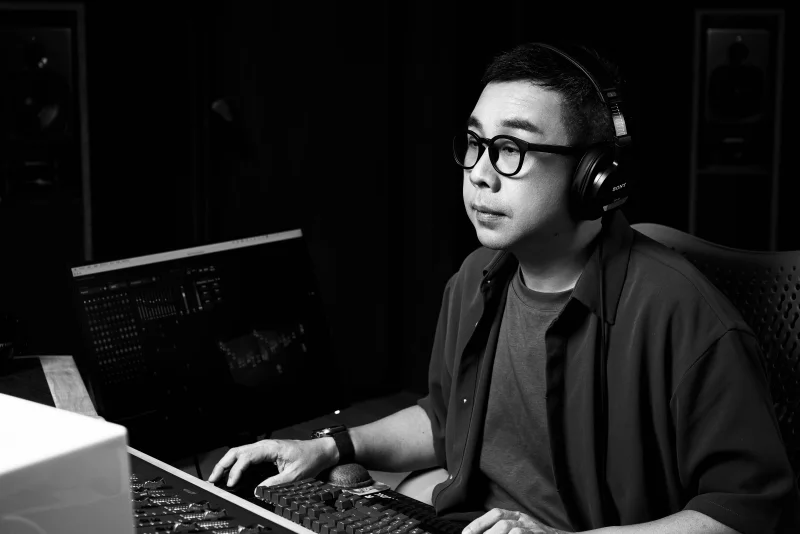
UTUVO is built by our team, led by Micky Yang.
He's a Tonmeister with 1,600+ Mandopop songs mixed in Dolby Atmos, four Golden Melody Awards for recording, and he teaches recording at university. Most tools are what engineers imagine recordists need. UTUVO is what a recordist built because he couldn't stand the existing ones.
 UTUVO Player Pro
 UTUVO Player Ref